
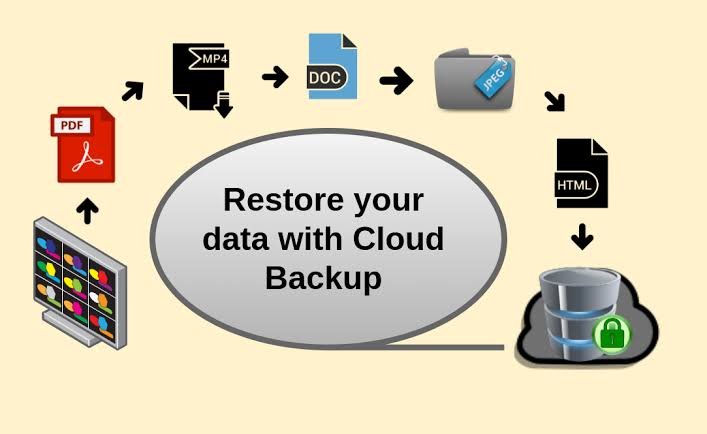
Imagine losing your laptop, accidentally deleting important files, or discovering that your computer has been infected with ransomware. Photos, business documents, financial records, and years of personal information could disappear in a matter of minutes. For individuals and businesses alike, losing important data can be stressful, expensive, and sometimes impossible to recover from.
This is why cloud backup has become an important part of modern data protection. Instead of keeping every copy of your information on a single device, cloud backup allows you to store copies of your files on remote servers that you can access when needed.
Whether you want to protect family photos, secure work documents, or safeguard an entire business system, understanding how cloud backup works can help you make better decisions about your data.
In this guide, we will explain what cloud backup is, how it works, its main benefits and limitations, and how to choose the right backup solution for your needs.
What Is Cloud Backup?
Cloud backup is a data protection method that involves copying files, applications, or other digital information from your device or computer system to remote storage managed through a cloud service.
These backups are stored outside your local device, usually in a cloud provider’s data center. If your original files are lost, damaged, accidentally deleted, or affected by a cyberattack, you can use the backup to recover the information.
For example, imagine you store important business documents on your laptop. If the laptop stops working, a cloud backup may allow you to restore those documents to a replacement device.
Cloud backup can protect many types of information, including:
- Documents, spreadsheets, and presentations.
- Photos, videos, and personal files.
- Business databases and application data.
- Server configurations and system files.
- Virtual machines and cloud workloads.
- Files stored on compatible computers and mobile devices.
Cloud backup is different from simply storing files online. Cloud storage services are often designed for syncing, sharing, and accessing files across devices, while backup services focus on maintaining recoverable copies of data from specific points in time.
Some services provide both capabilities, but their retention policies and recovery features may differ.
How Does Cloud Backup Work?
Cloud backup generally works by copying selected data from a local device or cloud environment to a remote storage location over an internet connection or a private network.
The process can be automated, allowing backups to run according to a schedule or in response to changes in the data.
Although the exact implementation depends on the service, most cloud backup systems follow a similar process.
1. Selecting the Data to Back Up
The first step is deciding which information needs protection.
For a home user, this might include photos, documents, videos, and important personal files. A business may need to protect databases, email systems, application data, and entire servers.
Backup software or an agent helps identify the selected files and prepare them for copying.
Some solutions allow users to select individual folders, while others support full-device or application-level backups.
Choosing the right data is important because backing up everything may increase storage costs and processing time. However, excluding important files can create problems during recovery.
2. Sending Data to the Cloud
After the data is selected, backup software transfers it to the cloud provider’s storage environment.
The transfer usually takes place over an encrypted connection, helping protect information while it travels across the network.
The initial backup can take a considerable amount of time if you have a large amount of data or a slow internet connection.
For example, uploading several hundred gigabytes of videos will generally take longer than backing up a small collection of documents.
After the initial backup, many services transfer only new or changed data. This approach can reduce network usage and shorten subsequent backup operations.
3. Storing the Backup Securely
Once the information reaches the cloud service, it is stored in remote infrastructure designed to maintain and retrieve data.
Depending on the provider and service, storage may include redundancy, access controls, encryption, and monitoring.
Redundancy means maintaining multiple copies or distributing data across storage systems to reduce the risk of losing information because of an individual hardware failure.
However, redundancy is not the same as having a separate backup. If unwanted changes or deletions are replicated across copies, they may affect the recoverable data unless appropriate retention or versioning features are available.
That is why a reliable backup strategy should consider both storage durability and protection against accidental deletion, corruption, and cyberattacks.
4. Running Automatic Backups
Many cloud backup services allow you to schedule backups automatically.
For example, a computer may back up important files every evening, while a business database may require more frequent backups.
Some services also support continuous data protection or frequent incremental backups, depending on the system and configuration.
Automatic backups reduce the need to remember to copy files manually.
However, automation alone does not guarantee protection. Backup jobs can fail because of connectivity problems, expired credentials, storage limits, or software errors.
It is important to monitor backup status and investigate failed jobs instead of assuming that every scheduled backup completed successfully.
5. Restoring Data When Needed
The final step is recovering information from the backup.
If your laptop is damaged, you may be able to download selected files to another device. If a business server fails, an administrator may restore its data to replacement infrastructure.
Depending on the service, recovery options may include:
- Restoring individual files or folders.
- Recovering earlier versions of documents.
- Restoring a complete device or server.
- Recovering databases to a supported recovery point.
- Rebuilding a virtual machine or cloud environment.
The time required depends on the amount of data, internet speed, storage configuration, and recovery method.
For this reason, businesses should test the restoration process regularly. A backup is only truly useful when the information can be recovered successfully.
Types of Cloud Backup
Different backup methods serve different purposes. Understanding the main options can help you choose a solution that balances cost, storage requirements, and recovery speed.
1. Full Backup
A full backup creates a complete copy of the selected data at a particular point in time.
For example, if your computer contains 200 GB of selected files, a full backup attempts to copy that entire dataset, subject to the backup system’s design.
The main advantage is that a complete backup can simplify recovery because the required data is contained in one backup set.
The downside is that full backups can require more storage space, time, and network bandwidth than methods that copy only changes.
Full backups are often combined with incremental or differential backups to make ongoing protection more efficient.
2. Incremental Backup
An incremental backup copies only the data that has changed since the previous relevant backup.
For example, after an initial full backup, a daily incremental backup may contain only the new or modified information.
This approach can reduce storage requirements and make frequent backups more practical.
However, depending on the backup system, restoring data may require the full backup and a sequence of incremental backups. If a required backup component is missing or damaged, recovery can become more complicated.
Modern backup software manages these relationships, but the restoration process should still be tested.
3. Differential Backup
A differential backup copies data that has changed since the last full backup.
Unlike an incremental backup, each differential backup includes changes accumulated since that full backup.
This can make restoration simpler because recovery generally requires the full backup and the relevant differential backup.
The trade-off is that differential backups may become larger as more data changes between full backups.
4. Continuous Data Protection
Some backup solutions support continuous data protection or very frequent recovery points.
These systems aim to capture changes more frequently than a once-daily backup schedule.
This can be useful for business systems where losing several hours of recent work would be unacceptable.
However, the term can describe different implementations. Some services continuously track changes, while others create recovery points at short intervals.
Check the provider’s actual recovery point objectives, retention policies, and application support rather than relying on the feature name alone.
Benefits of Cloud Backup
Cloud backup offers several advantages for individuals, remote workers, and organizations.
Protection Against Device Failure
Hard drives, laptops, smartphones, and servers can fail unexpectedly. If important data exists only on one device, a hardware problem may result in permanent loss.
Cloud backup provides an additional copy that can be used to recover information if the original device becomes unavailable.
Protection Against Accidental Deletion
People sometimes delete files unintentionally or overwrite information they later need.
Depending on the service’s retention and versioning features, cloud backup can help restore earlier copies of those files.
This is particularly useful for documents that change frequently.
Access to Data From Different Locations
Cloud backup can make recovery possible even when the original device is lost or damaged.
For example, a person who loses a laptop may be able to recover important documents using a replacement computer.
Access depends on the service, account security, internet connectivity, and the type of backup being restored.
Support for Remote Work
Many people now work from home, travel frequently, or use several devices.
Cloud backup helps protect work files and other important information without requiring users to keep a separate physical backup drive nearby.
Businesses can also use cloud backup to protect remote endpoints and distributed systems.
Scalability
Cloud backup services can often increase storage capacity as data grows.
This can be convenient for businesses that need to protect more users, databases, or application environments over time.
However, storage, retention, data retrieval, and network transfer costs may increase as well. Scalability should be considered alongside budget planning.
Support for Disaster Recovery
For businesses, cloud backup can be part of a broader disaster recovery strategy.
If a fire, flood, hardware failure, or other incident affects an office or data center, off-site backups may allow the organization to recover essential information.
However, restoring data is only one part of disaster recovery. Businesses may also need replacement infrastructure, application configurations, network access, identity services, and a tested recovery plan.
What Are the Limitations of Cloud Backup?
Although cloud backup is valuable, it is not a perfect solution. Understanding its limitations can help you avoid common problems.
1. Dependence on Internet Connectivity
Cloud backups generally require a network connection to upload data and retrieve it.
If you have a slow connection or need to restore a large amount of information, recovery may take a long time.
Some providers offer physical data transfer options or other recovery methods for large datasets, but availability varies.
2. Ongoing Subscription Costs
Many cloud backup providers charge recurring fees based on storage capacity, the number of devices, retention periods, or additional features.
Businesses may also incur charges for data retrieval, network transfer, and backup management.
Before choosing a service, review the total cost rather than focusing only on the advertised monthly price.
3. Security and Privacy Risks
Cloud backup stores information outside your direct physical control.
If an account is compromised or permissions are configured incorrectly, sensitive information could be exposed or backups could be deleted.
Choose a provider that supports appropriate encryption, access controls, multifactor authentication, and security monitoring.
For highly sensitive data, consider whether client-side encryption or customer-managed encryption keys are available and suitable for your requirements.
4. Accidental Deletion or Ransomware
A cloud backup does not automatically protect you from every cyberattack.
If an attacker gains access to both your primary systems and your backup account, they may attempt to delete or encrypt the backups.
Some services also synchronize unwanted changes, meaning that a corrupted or encrypted file may affect other copies.
To reduce these risks, use appropriate retention policies, versioning, separate credentials, and immutable or otherwise protected backup copies where supported.
5. Failed or Incomplete Backups
A scheduled backup may fail without being noticed.
Common causes include network interruptions, insufficient storage, expired credentials, software errors, and permission problems.
Regular monitoring helps identify failures before a recovery emergency occurs.
It is also important to verify that the backup contains the expected data rather than simply checking whether a backup job started.
Cloud Backup vs. Cloud Storage: What Is the Difference?
Cloud backup and cloud storage are related, but they are not interchangeable.
Cloud storage services are often designed to make files available across devices, support collaboration, and allow people to share documents.
Cloud backup focuses on creating recoverable copies of data so that information can be restored after loss, corruption, or other incidents.
For example, if you delete a file from a synchronized folder, the deletion may also appear on other connected devices. A backup service with suitable retention policies may preserve an earlier copy that you can restore.
| Feature | Cloud Backup | Cloud Storage and Sync |
|---|---|---|
| Main purpose | Data protection and recovery | File access, sharing, and collaboration |
| Backup scheduling | Usually available | Depends on the service |
| Historical recovery | Often supported through retention and versioning | May be limited by service-specific policies |
| Full-device recovery | Available with some solutions | Not generally the primary purpose |
| Automatic synchronization | Not always the main feature | Common |
| Typical use | Recovering lost or damaged data | Accessing and sharing files across devices |
Some services combine both capabilities. The important thing is to confirm which recovery features are included rather than assuming that every online file storage service provides comprehensive backup protection.
How to Choose the Right Cloud Backup Service
The best cloud backup service depends on how much data you need to protect, how quickly you need to recover it, and how sensitive that information is.
Here are some important factors to consider.
1. Storage Capacity
Estimate how much data you need to back up today and how quickly it is likely to grow.
A home user protecting documents and photos may need relatively little storage, while a business protecting servers and databases may require significantly more.
Remember to account for backup history and retained versions, not just the size of the current files.
2. Security Features
Look for encryption in transit and at rest, multifactor authentication, access controls, and clear security documentation.
For business environments, features such as immutable backups, audit logs, and separate administrative permissions may be particularly important.
Check whether the provider supports the security and compliance requirements that apply to your data.
3. Backup Frequency
Think about how much recent work you could afford to lose.
If you back up important documents once a day, changes made since the last successful backup may not be recoverable from that backup.
A business handling frequent financial transactions may need much more frequent recovery points than someone backing up a personal photo collection.
Choose a schedule that reflects the importance of your data and the rate at which it changes.
4. Recovery Speed
Consider how long you can afford to wait for your information to be restored.
Restoring a few documents is very different from rebuilding an entire business server.
Check whether the provider offers file-level restoration, full-system recovery, application-aware backups, or other recovery features that match your needs.
5. Pricing and Retention Policies
Compare subscription fees, storage charges, retrieval costs, retention periods, and any limits on the number of devices or workloads.
A low-cost service may become more expensive if it charges substantial fees for retrieving large amounts of data.
Retention is especially important because it determines how far back you can recover information after an incident.
6. Ease of Use and Automation
A good backup solution should be easy to configure and monitor.
For personal use, automatic backups and simple file restoration may be enough.
Businesses may need centralized dashboards, automated alerts, reporting, and policy management across multiple systems.
The easier a backup process is to maintain, the more likely it is to remain reliable over time.
Popular Cloud Backup Options to Consider
Several well-known services provide cloud backup or related data protection capabilities.
- Backblaze: Offers personal computer backup and business-oriented backup services, with features and pricing that vary by product.
- IDrive: Provides backup options for multiple devices and different types of data.
- Acronis Cyber Protect: Combines backup capabilities with additional cyber protection features in supported plans.
- Microsoft Azure Backup: Supports backup and recovery for compatible workloads in Microsoft-oriented environments.
- AWS Backup: Helps centrally manage backup policies for supported AWS services and resources.
- Google Cloud Backup and DR: Provides data protection and recovery capabilities for supported enterprise workloads.
These products serve different audiences. A personal computer backup service may be appropriate for an individual, while an organization protecting databases, virtual machines, and business applications may need a more specialized platform.
Before purchasing, check the latest pricing, supported devices, retention options, recovery features, and security capabilities.
Best Practices for Keeping Your Cloud Backups Safe
Choosing a provider is only the first step. How you configure and maintain your backups is equally important.
Follow the 3-2-1 Backup Rule
A commonly recommended approach is the 3-2-1 backup rule:
- Keep at least three copies of your important data, including the original.
- Store the copies on at least two different types of storage media or storage systems.
- Keep at least one copy off-site.
For example, you might keep your working files on a computer, maintain a local backup on an external drive, and store another backup in the cloud.
This reduces the risk that a single device failure or local disaster will destroy every copy.
For stronger ransomware protection, consider adding an offline or immutable backup that attackers cannot easily alter or delete.
Enable Multifactor Authentication
Use multifactor authentication on your backup account wherever available.
This adds an extra layer of protection beyond a password and can make it more difficult for unauthorized people to access your data.
Use strong, unique passwords and restrict administrative access to trusted users.
Test Your Backups Regularly
Do not wait for a disaster to discover that your backups cannot be restored.
Periodically restore a sample of files and, where appropriate, test a complete recovery process in a safe environment.
Businesses should document recovery procedures and verify that essential applications can be brought back online within their required timeframes.
Monitor Backup Activity
Review backup reports and configure alerts for failed jobs, unusual deletions, or storage problems.
Make sure someone is responsible for investigating failures and confirming that recovery points are available.
Set Appropriate Retention Policies
Decide how long different types of information need to be retained.
For example, personal documents may require a different retention policy from financial records or regulated business data.
Longer retention can improve recovery options, but it may also increase storage costs. Policies should reflect business needs, legal obligations, and data protection requirements.
What Are RPO and RTO in Cloud Backup?
For businesses, two important concepts help determine whether a backup strategy is suitable: Recovery Point Objective (RPO) and Recovery Time Objective (RTO).
Recovery Point Objective (RPO) describes how much data loss, measured in time, an organization can tolerate after an incident.
For example, an RPO of one hour means the organization aims to recover data from a point no more than one hour before the incident.
Recovery Time Objective (RTO) describes how quickly the organization aims to restore a service or system after an interruption.
For example, an RTO of four hours means the organization aims to restore the affected service within four hours.
These objectives influence backup frequency, storage design, recovery procedures, and infrastructure requirements.
A personal computer used for occasional writing may tolerate a longer recovery time than an online payment system.
Businesses should set realistic RPO and RTO targets and test whether their backup and recovery arrangements can actually meet them.
Final Thoughts
Cloud backup is one of the most practical ways to protect important digital information against device failure, accidental deletion, cyberattacks, and unexpected disasters.
By storing recoverable copies of data away from the original device or environment, cloud backup provides an additional layer of protection that can be invaluable when something goes wrong.
However, effective data protection requires more than uploading files to the cloud. You also need appropriate backup schedules, secure account settings, sensible retention policies, and a reliable restoration process.
For individuals, an automated cloud backup service combined with a local backup can help protect photos, documents, and other personal files. For businesses, a well-designed backup strategy can support continuity, reduce downtime, and help protect essential operations.
Start by identifying the information you cannot afford to lose. Then choose a backup solution that fits your storage needs, budget, security requirements, and recovery expectations.
Ultimately, the real value of cloud backup is not simply having another copy of your data. It is knowing that you have a practical way to recover that data when you need it most.